Microsoft PowerPoint (MS PowerPoint) is the Microsoft Office program for making presentations. A presentation is a set of slides, shown one after another on a screen or projector. Punjab Police SI and Constable papers ask about it almost every year. They ask about placeholders, the views, the slide show keys (F5, Shift+F5), the ribbon tabs, transitions and file types. This page starts with a labelled picture of the screen, then teaches each piece in turn.
Know the screen
The Normal view part by part, placeholders and slide layouts.
A slide is one screen of a presentation, like one page of a book. A presentation is the whole file of slides. Playing the slides full screen for an audience is called the slide show.
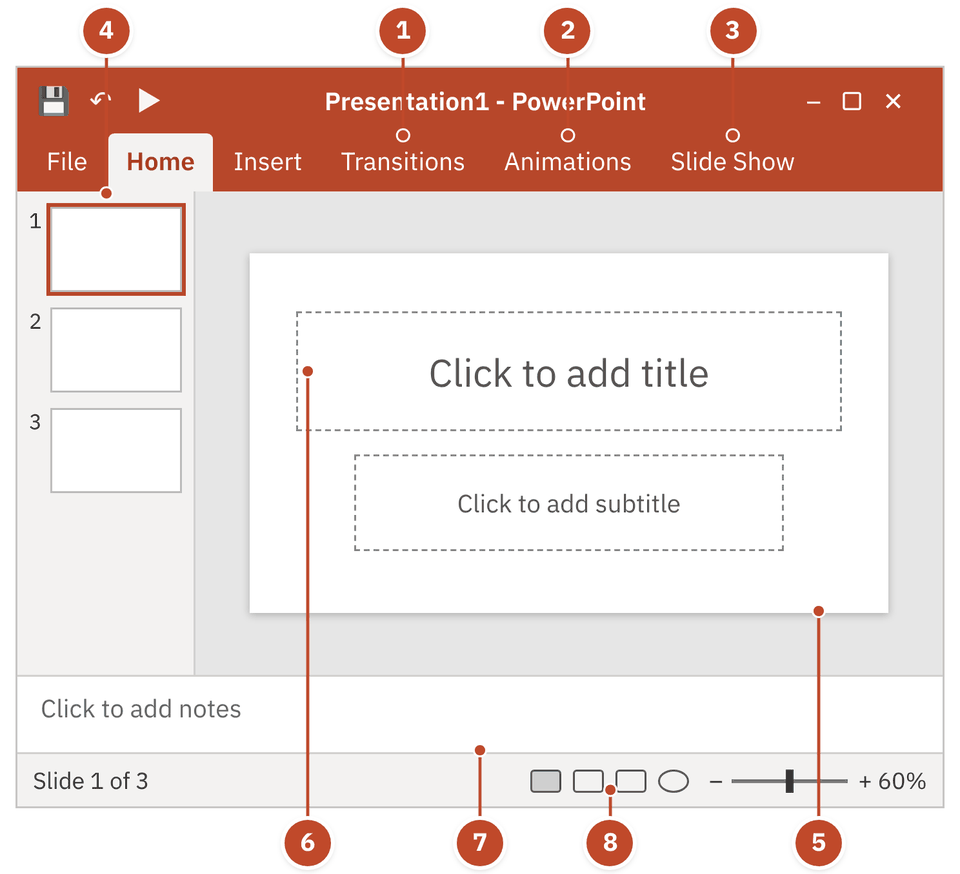
- 1Transitions tab — Effects as one slide changes to the next. Its Duration box sets the speed.
- 2Animations tab — Effects on text and objects inside one slide.
- 3Slide Show tab — From Beginning (F5) and From Current Slide (Shift+F5).
- 4Slides pane (thumbnails) — Small pictures of all slides on the left. Click one to open it.
- 5Slide pane — The big centre area. You design the slide here: type, format and add pictures.
- 6Placeholder — Dotted box saying Click to add title. Click inside and type.
- 7Notes pane — Strip under the slide for speaker notes. The audience does not see them.
- 8View buttons — On the status bar: Normal, Slide Sorter, Reading View, Slide Show.
- Status bar: the bottom strip. It shows the slide number ("Slide 1 of 3"), the view buttons and zoom.
- Ribbon: the strip of tabs and buttons at the top. The ribbon tabs part below shows which job lives on which tab.
- Task pane: a side panel that opens for tools such as Format Shape or the Animation Pane. It is not a place on the slide.
A placeholder is a box with a dotted border on a new slide. It says Click to add title or Click to add text. It is a pre-formatted container: its place, size and font are already set. You just click and type, or drop in a picture, table or chart.
Click inside the dotted box and type.
Insert tab → Text Box, draw it anywhere, type. A placeholder is a ready-made text box, so papers call the text box the usual way to add text.
Select a shape and start typing. The text sits inside it.
ClipArt is not a way to add text. It adds a ready-made drawing.
| Built-in layout | What the slide gets |
|---|---|
| Title Slide | A title and a subtitle. The first slide of a new presentation uses it, so it is called the title slide. |
| Title and Content | A title and one big content box |
| Section Header | Starts a new section of the talk |
| Two Content / Comparison | Two boxes side by side |
| Title Only / Blank | Just a title, or nothing at all |
| Content / Picture with Caption | Content or a picture with a short caption |
The views of PowerPoint
Normal, Outline, Slide Sorter, Notes Page, Reading and the masters.
A view is a way of looking at the same presentation. Changing the view does not change your slides. You switch views from the View tab or the small buttons on the status bar.
| View | What you see | Use it to |
|---|---|---|
| Normal | Slide pane, thumbnails and notes pane | Make and edit slides (the default view) |
| Outline | Only the text: titles and points of every slide | Draft the talk as an outline or story board |
| Slide Sorter | Thumbnails of all slides in order | Drag to change the order; copy, hide or delete slides |
| Notes Page | A page with the slide on top and its notes below | Write and print speaker notes |
| Reading View | The show inside a window | Review the deck without going full screen |
| Slide Show | One slide filling the whole screen | Present to the audience |
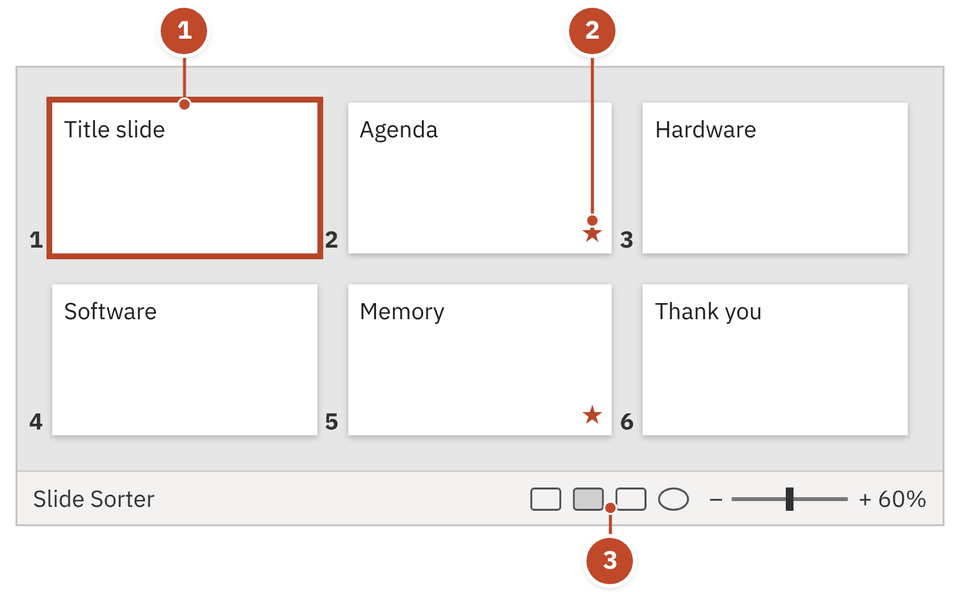
- 1Slide thumbnail — One small picture per slide. Drag it to change the order.
- 2Star icon — This slide has a transition or an animation.
- 3Slide Sorter view button — On the status bar, next to the Normal button.
- Click the Slide Sorter view button on the status bar. All slides appear as thumbnails.
- Click slide 4, Hardware, to select it.
- Drag Hardware and drop it before Memory.
- The slides renumber by themselves: Hardware is now slide 3.
Slide Sorter = sort the order. Outline = only the lines of text. Notes Page = notes on paper.
- Speaker notes are typed in the Notes pane. You see them in Normal view, Notes Page view and Presenter View. The audience never sees them in the slide show.
- Notes Page is a view on the View tab, in the same group as Normal, Outline and Slide Sorter.
Running the slide show
F5, Shift+F5, moving between slides and Presenter View.
| During the show, press | What happens |
|---|---|
| N, Enter, Spacebar, Right / Down arrow, Page Down | Next slide (or next animation) |
| P, Backspace, Left / Up arrow, Page Up | Previous slide |
| A number, then Enter | Jump to that slide |
| B or full stop / W or comma | Black screen / white screen (press again to return) |
| S | Stop or restart an automatic show |
| Esc (or hyphen) | End the show |
N = Next, P = Previous. Page Down goes forward, Page Up goes back, just like scrolling a page.
With two screens, the audience sees only the slide. Your screen shows the current slide, a preview of the next slide, your speaker notes and a timer. That makes it the best view to practise timing while reading notes. You switch it on from the Slide Show tab. In recent versions Alt+F5 also starts the show in Presenter View.
Same as F5.
Same as Shift+F5.
Shows only the slides you choose, in your order.
These sit on the Slide Show tab. An online or broadcast option also appears, depending on the version. There is no "Reverse from Rear": a show only runs forward.
Ribbon tabs: which job lives where
Home, Insert, Design, Transitions, Animations, Slide Show, Review, View.
The ribbon is the strip of commands at the top. It is split into tabs (Home, Insert …). Each tab is split into groups, such as the Media group on the Insert tab. Papers often give a "function – tab" pair and ask if it is correct.
| Tab | What you find there |
|---|---|
| File | New, Open (with a Recent list), Save, Save As, Print |
| Home | New Slide, Layout, Font, Paragraph, Drawing (Shapes, Arrange) |
| Insert | Table, pictures, Illustrations (Shapes, SmartArt, Chart), Hyperlink, Text Box, Header & Footer, WordArt, Symbols, Media (Video, Audio) |
| Design | Themes, slide size and orientation, slide background |
| Transitions | Effects when one slide changes to the next, and their Duration |
| Animations | Effects on text and objects inside a slide |
| Slide Show | From Beginning, From Current Slide, Custom Slide Show, Presenter View |
| Review | Spelling (F7), Comments |
| View | Normal, Outline, Slide Sorter, Notes Page, Reading View, the master views, Zoom |
Some tabs appear only when you select an object. Select a picture and Picture Tools (Format) appears. A shape or text box brings Drawing Tools. A table brings Table Tools. Newer versions may name them Picture Format and Shape Format.
Bring to Front, Send to Back: which object sits on top.
Align and Group: line objects up or join them.
Rotate or flip an object.
Arrange organises the layout. Shape Outline, Shape Effects and Quick Styles only change how a shape looks.
- Charts: Insert → Chart opens a small Excel spreadsheet. You type the numbers there and the chart redraws. Later, use Edit Data to open it again.
- ClipArt (PowerPoint 2010): Insert → Images → Clip Art opens a Clip Art pane. Later versions dropped Clip Art and offer online pictures instead.
- Video and audio go in from the Media group of the Insert tab.
Design, transitions and animations
Templates and themes, the two kinds of motion, and good design.
Duration is how long the effect itself takes to play, so it sets its speed. A longer duration means a slower effect. It is not a delay before the effect, not a repeat count, and not how long the slide stays on screen.
Plain white slides. No design.
A matching set of colours, fonts and effects.
A prepared design, often with sample slides.
"Backgrounds" is not a way to create a new presentation. You set a background on slides that already exist (Design tab).
A template is a pattern or blueprint for slides: theme colours, fonts, backgrounds, layouts and placeholders. It is saved as a .potx file. Opening it starts a new presentation that already has the design.
- Use one consistent colour scheme on all slides
- Pick fonts that look good and are easy to read
- Use high-quality images and graphics
- Too many animations and transitions
- Long paragraphs on one slide
- Tiny text the back row cannot read
- Used sensibly, a transition makes a deck look more polished and holds the audience's attention as the slide changes.
- The default slide orientation is landscape (wider than tall), because screens are wide. Newer versions open widescreen (16:9) slides. Portrait can be chosen from the slide size settings on the Design tab.
File types and shortcut keys
Every PowerPoint extension starts with pp or po.
| Extension | What it is |
|---|---|
| .pptx | Presentation: the default in PowerPoint 2007 and later |
| .ppt | Old presentation format (before 2007) |
| .pptm | Presentation with macros |
| .ppsx | Show: opens straight into the slide show |
| .ppsm | Show with macros |
| .potx | Template |
| .potm | Template with macros |
A macro is a small recorded program that does a task automatically. Files that may carry macros end in m.
| Keys | What they do |
|---|---|
| Ctrl+M | New slide |
| Ctrl+N | New presentation |
| Ctrl+Shift+> | Increase font size (grow) |
| Ctrl+Shift+< | Decrease font size (shrink) |
| Ctrl+Shift+Right arrow | Select to the end of a word |
| Ctrl+Shift+Left arrow | Select to the beginning of a word |
| F7 | Spelling check |
| Ctrl+K | Insert a hyperlink |
The > sign means greater, so it makes text bigger. The arrow points the way the selection grows.
- Fastest way to reopen a recent file: File → Open → Recent. (File → New and Ctrl+N make a new file.)
- Font size list: in PowerPoint the drop-down list goes up to 96. In MS Word it stops at 72. You can still type a bigger number into the box.
Quick revision
Keys, views, traps and one-line facts.
- F5
- Start the show from the first slide
- Shift+F5
- Start the show from the current slide
- Alt+F5
- Start in Presenter View (recent versions)
- Esc
- End the slide show
- Ctrl+M
- New slide
- N / P
- Next slide / previous slide
- B / W
- Black screen / white screen
- .pptx
- Default presentation file (2007 and later)
- .ppsx
- Opens straight into the slide show
- .potx
- Template
- Slide Sorter
- Thumbnails; change the order of slides
- Placeholder
- Dotted box: "Click to add title"
- Transitions are on the Transitions tab, not Insert. WordArt is on Insert, not View.
- Shift+F5 starts from the current slide. It does not stop the show; Esc does.
- Duration = speed of the effect, not the delay before it.
- Notes while presenting = Presenter View, not a master view.
- Shift = slides in sequence; Ctrl = slides not in sequence.
- Font list maximum: 96 in PowerPoint, 72 in Word.
Also asked onceTap to open
- The Review tab has spell-check and comments.
- Themes are on the Design tab, and Notes Page is on the View tab. Both pairs are correct.
- Selecting a picture shows the Picture Tools contextual tab.
- Arrange changes the order, position and rotation of objects.
- To use a prepared design for a new presentation, select one of the templates.
- The Slide pane is where a slide is designed by typing and formatting.
- Outline view shows only the text of the slides.
- The very first slide of a new presentation is the title slide.
- The N key moves to the next slide during a show.
- Presenter View is best for practising timing while seeing your notes.
- The default slide orientation is landscape.
- The Handout Master has no Outline placeholder.
You are on slide 7. You want to start the show from here and also see your notes privately. What do you press, and which view helps?
Show answer
Press Shift+F5 to start from the current slide. Use Presenter View: the audience sees only the slide, while you see the notes, the next slide and a timer. Press Esc to end.