Microsoft Word (MS Word) is the word processor of Microsoft Office. A word processor is a program to type, edit, format and print documents such as letters, reports and notices. It does what a typewriter did, and much more. Punjab Police SI and Constable papers ask about Word every year. They ask about the ribbon and status bar, selecting and finding text, font and paragraph formatting, page setup and tables. This page covers all of it.
Know the screen
The top of the window, the page, the status bar and the views.
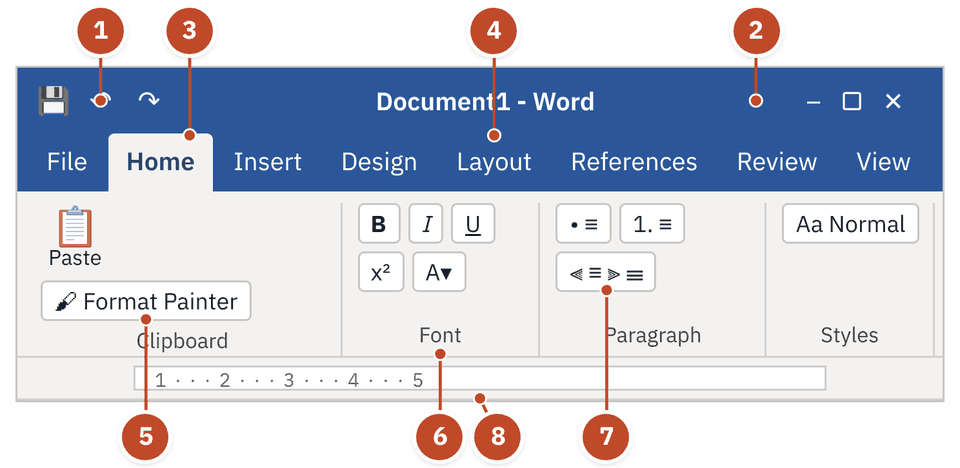
- 1Quick Access Toolbar — Small buttons near the top: Save, Undo, Redo.
- 2Title bar — The bar at the very top. It shows the file name, such as Document1 - Word.
- 3Home tab — One tab of the Ribbon. Each tab holds groups of tools to edit and format.
- 4Layout tab — Called Page Layout before Word 2016. Margins, orientation, size, columns.
- 5Format Painter — In the Clipboard group. Copies formatting only; see the video in Part 2.
- 6Font group — Bold, Italic, Underline, superscript, font colour. The group name is written at the bottom.
- 7Paragraph group — Bullets, numbering, and Align Left / Center / Align Right / Justify.
- 8Ruler — Measuring strip that shows margins, indents and tab stops.
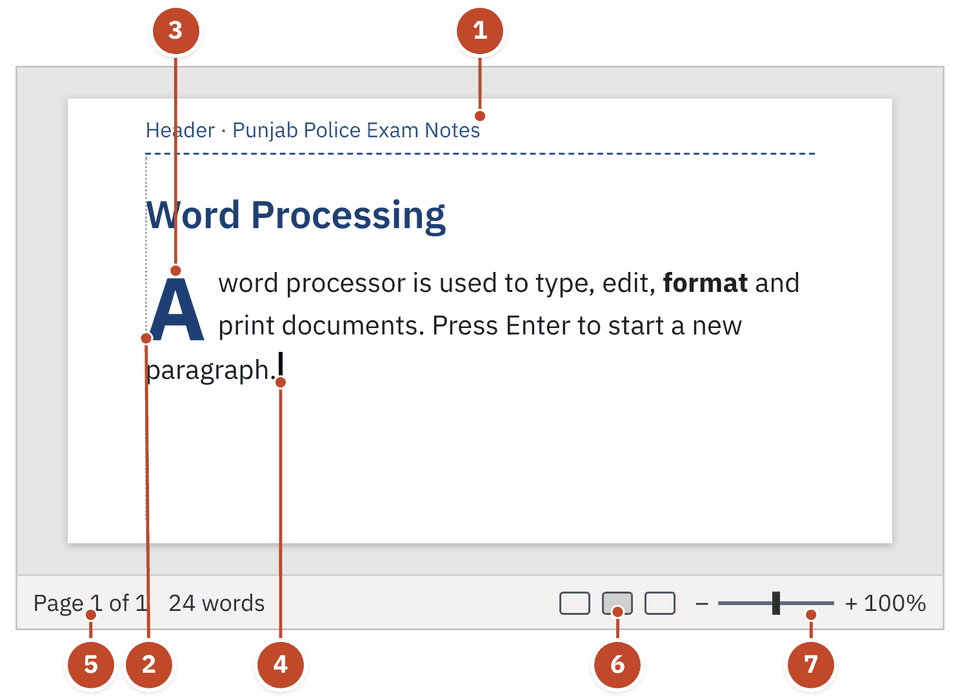
- 1Header — Text typed here once repeats at the top of every page. Insert tab.
- 2Margin — The blank space round the text.
- 3Drop Cap — A large first letter at the start of a paragraph. Insert tab.
- 4Insertion point — The blinking line where the next letter you type will appear.
- 5Status bar — The bottom strip. Shows the page number and the word count.
- 6View buttons — Read Mode, Print Layout, Web Layout.
- 7Zoom — Makes the page look bigger or smaller on screen. The printout does not change.
| Tab | Main tools |
|---|---|
| File | Opens Backstage view: New, Open, Save, Save As, Print (with preview) |
| Home | Groups: Clipboard, Font, Paragraph, Styles, Editing (Find, Replace) |
| Insert | Cover Page, Page Break, Table, Pictures, Shapes, Chart, Screenshot, Header & Footer, Text Box, WordArt, Drop Cap |
| Page Layout (called Layout from Word 2016) | Margins, Orientation, Size, Columns, Breaks |
| References / Mailings | Table of contents, footnotes / mail merge |
| Review | Spelling (F7), comments, track changes |
| View | Views, Ruler, Zoom, Window (New Window, Arrange All, Split, Switch Windows), Macros |
| View | What it shows |
|---|---|
| Print Layout | The page as it will print, with all formatting: margins, headers, pictures. The default view. |
| Read Mode (Word 2010: Full Screen Reading) | Easy reading, like a book |
| Web Layout | The document as a web page, no page breaks |
| Outline | Headings as a list you can rearrange |
| Draft | Plain text for fast typing |
Selecting, editing, finding and saving
Mouse clicks, the clipboard, wildcards and Save As.
| To select | Do this |
|---|---|
| One word | Double-click the word |
| One paragraph | Triple-click inside it |
| One sentence | Hold Ctrl and click the sentence |
| The whole document | Ctrl+A |
The Format Painter (a paint-brush button in the Clipboard group of the Home tab) copies formatting only, not text. Double-click the brush to use it many times; press Esc to stop.
- Select "Important:". This text already has the look you want: bold and red.
- Click Format Painter (Home tab → Clipboard group). It picks up the formatting.
- Drag over "Note:", the text you want to change.
- "Note:" now has the same bold red look. The words did not change; only the formatting was copied.
In Find and Replace (Ctrl+H), click More and tick Use wildcards. Now some symbols stand for unknown letters, like a blank in a crossword. The two papers ask about are below.
| Wildcard | Matches | Example |
|---|---|---|
| ? (question mark) | Exactly one character | s?t finds sat, set, sit |
| * (asterisk) | Any number of characters | b*t finds but, boot, burst |
- Print Preview lets you see how each page will look before printing. From Word 2010 it sits beside the print settings in File → Print (Backstage view). Ctrl+P opens it.
- Over text you can edit, the mouse pointer turns into an I-beam (a tall thin I).
- Switch Windows (View tab) jumps straight to another open document. Split shows two parts of one document.
Character formatting: the font
How letters look: typeface, size, bold, effects and the drop cap.
The font decides how characters look: the typeface (like Calibri or Arial), size, style (bold, italic), colour and effects. These tools sit in the Font group of the Home tab. Character formatting changes letters; it does not move whole paragraphs.
| Keys | Font command |
|---|---|
| Ctrl+B / Ctrl+I / Ctrl+U | Bold / Italic / Underline |
| Ctrl+Shift+> / Ctrl+Shift+< | Grow / shrink font size |
| Ctrl+= / Ctrl+Shift+= | Subscript (H₂O) / superscript (x²) |
| Shift+F3 | Change case (lower, UPPER, Title) |
| Ctrl+Shift+Space | Non-breaking space |
A toggle button has two states. One click turns it on, the next click turns it off. Bold, Italic and Underline are toggles. The font style / font name box is a drop-down list, not a toggle.
A large capital letter at the start of a paragraph, dropping two or three lines deep. Choose Dropped or In margin.
Stops two words splitting across lines, as in a name or a date like "12 June".
Strikethrough, superscript, subscript and more. These are character effects, not paragraph formatting.
Paragraph formatting
Alignment, line spacing, indents, bullets and numbering.
The Paragraph group of the Home tab holds alignment, bullets, numbering, multilevel lists, indents, line and paragraph spacing, shading and borders. These shape a whole paragraph, not single letters.
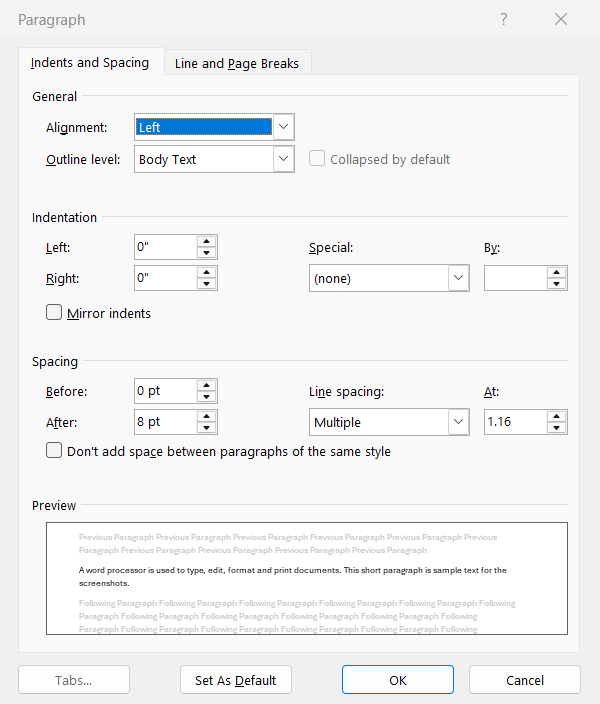
- 1Alignment — Left, Centered, Right or Justified: the same four as the ribbon buttons.
- 2Indentation — Moves the paragraph in from the margins: Left, Right, and Special (First line or Hanging).
- 3Spacing Before / After — Space above and below a paragraph, in points (pt). This is the Spacing section papers ask about.
- 4Line spacing — Gap between lines inside the paragraph: Single, 1.5 lines, Double, At least, Exactly, Multiple.
- 5Preview — Shows how the paragraph will look before you click OK.
| Alignment | Keys | Lines sit |
|---|---|---|
| Align Left | Ctrl+L | Flush with the left margin |
| Center | Ctrl+E | In the middle |
| Align Right | Ctrl+R | Flush with the right margin |
| Justify | Ctrl+J | Both edges straight, like a newspaper |
Left, cEnter, Right, Justify: "Let Every Row Justify".
- The quick way to indent is the Tab key. In a list, Tab moves an item one level in and Shift+Tab moves it back.
- Enter starts a new paragraph. Shift+Enter gives a new line inside the same paragraph. Ctrl+Enter starts a new page.
- To make a new numbering format: Home tab → Paragraph group → arrow next to Numbering → Define New Number Format.
- Underline and Effects are font (character) formatting, not alignment or paragraph options.
- Conditional Formatting belongs to Excel, not Word's paragraph tools.
- Paragraph alignment is left, centre, right, justify. "Top" is not one of them.
Page setup, headers and the Insert tab
Margins, gutter, orientation, headers, footers and breaks.
Page Setup tells Word how the printed page should be: margins, orientation, paper size and how pages are arranged. It is on the Page Layout tab (named Layout from Word 2016). It does not deal with graphics.
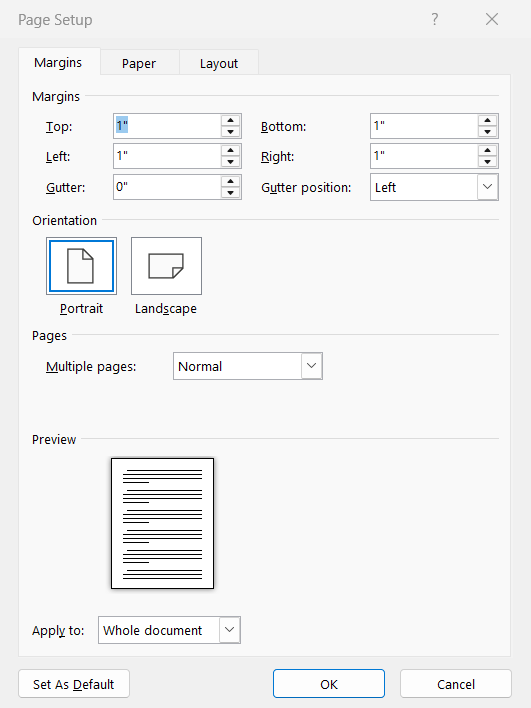
- 1Margins / Paper / Layout tabs — Three tabs. Margins is open here; Paper sets the paper size.
- 2Top, Bottom, Left, Right — The four margins. There is no "Base" margin.
- 3Gutter — Extra margin for binding, so stitching does not hide the text.
- 4Gutter position — Left or Top: the edge where the binding goes.
- 5Orientation — Portrait (taller than wide, the default) or Landscape (wider than tall, for wide tables and charts).
A header is the space in the top margin. What you type there once repeats at the top of every page, such as a title or page number. A footer does the same at the bottom. Add them from Insert → Header & Footer.
- Page Break is on the Insert tab (Pages group), with Cover Page and Blank Page. Shortcut: Ctrl+Enter.
- Screenshot is on the Insert tab, in the Illustrations group. It drops a picture of an open window into the document.
Tables and file types
Rows and columns, merging cells, borders and .docx.
A table organises information into rows (across) and columns (down). Each box is a cell. Tables line up related facts so they are easy to compare. Charts, pictures and hyperlinks have their own commands.
| Way to make a table (Insert → Table) | When to use it |
|---|---|
| Drag over the grid | Fastest when you know the rows and columns (grid up to 10 × 8) |
| Insert Table dialog | Type the number of columns and rows you want |
| Draw Table | Draw cells by hand with a pencil pointer |
| Quick Tables | Ready-made tables such as calendars |
Joins two or more adjacent cells into one.
Breaks one cell into several.
Pick a line style, then paint borders onto chosen cell edges.
Border Painter is for borders in newer versions. Format Painter copies text formatting.
| Extension | What it is |
|---|---|
| .docx | Document: the default in Word 2007 and later |
| .doc | Old Word document (before 2007) |
| .dotx | Word template |
| .docm / .dotm | Document / template with macros |
| .rtf | Rich Text Format, opens in many programs |
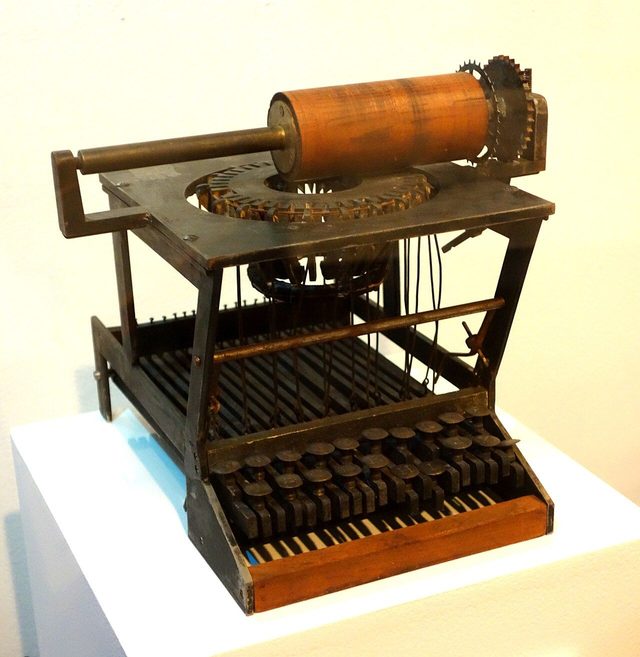
- c. 1870Sholes and Glidden prototype
Early typewriter work that led to QWERTY.
- 1961IBM Selectric
Electric typewriter with a swappable type ball.
- 1975Microsoft founded
By Bill Gates and Paul Allen.
- 1983First MS Word
Microsoft's word processor appears.
- 2007Ribbon and .docx
Menus and toolbars give way to the Ribbon.
- 2010File tab and Backstage view
Print and Print Preview join in one Print pane.
Quick revision
Keys, traps and one-line facts.
- Ctrl+E
- Center align
- Ctrl+J
- Justify
- Ctrl+X
- Cut (removes text to the clipboard)
- Ctrl+H
- Find and Replace
- Ctrl+Enter
- Page break
- Shift+Enter
- New line in the same paragraph
- F12
- Save As
- Wildcard ?
- Exactly one character
- Double-click / triple-click
- Select a word / a paragraph
- Gutter
- Extra margin space for binding
- .dotx
- Word template
- Backstage view
- Opened by the File tab; holds Print with preview
- Copy keeps the original; Cut removes it.
- Paragraph is a group, not a tab. Page Break is on Insert.
- Gutter = binding space, not the gap between columns.
- Font style box is a list, not a toggle. Bold, Italic, Underline are toggles.
- Border Painter is for table borders; Format Painter is for text formatting.
- Word's font list stops at 72; PowerPoint's goes to 96.
Also asked onceTap to open
- In a wildcard search, ? stands for exactly one character.
- Insert Table lets you specify the number of rows and columns.
- The Format Painter copies formatting from one piece of text to another.
- A non-breaking space keeps words like a name or date together on one line.
- For lines closer than single spacing, choose 0.9.
- Page Orientation is changed from the Page Layout tab. Both Portrait and Landscape are valid.
- Numbering, Bullets and Align Left are in the Paragraph group of the Home tab.
- Switch Windows jumps straight to another open window.
- Screenshot is on the Insert tab.
- Print Layout shows the formatting as it will print.
- In Word 2010, the Print pane (Print + Print Preview) is in Backstage view.
- In old Word, Save, Print, Cut, Copy and Paste were on the Standard toolbar.
- Graphics is not a Page Setup setting; margins, pages and orientation are.
- .dotx is a valid Word extension (template).
You type a 10-page report. You want the title at the top of every page, the first letter of chapter 1 large, and a table of 4 columns and 6 rows. Which features do you use?
Show answer
A Header (Insert → Header & Footer) for the title, Drop Cap (Insert → Text) for the big first letter, and Insert → Table, dragging a 4 × 6 grid or typing the numbers in Insert Table.